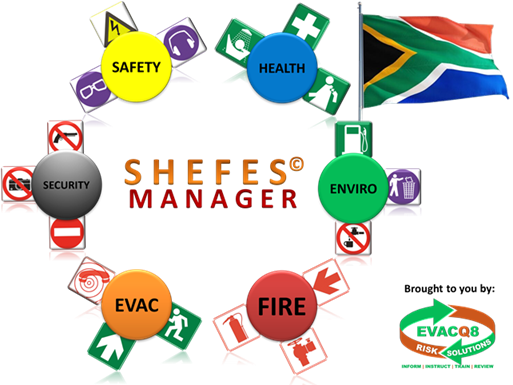


What Is SHEFES Manager©?
- SHEFES Manager is a live interactive integrated Risk Management Program, with the added benefit of an emergency evacuation plan.
- The program has been written with the main goal of assisting the responsible manager, to monitor, manage and control the physical risks in his / her company or department.
- SHEFES Manager also allows the responsible manager to conduct his/her own internal audits on the physical risks.
- SHEFES Manager is a cloud-based data storage and management program which can be remotely accessed by management to conduct the internal audits.
- Multi-national or even International companies have the benefit of managing their physical risks from a central point.
- SHEFES Manager is quality driven, i.e. documents used in the risk management program can be loaded and printed from anywhere to allow all departments and branches to use the same standard.
- The live maps and floor layouts used for the evacuation plan are used to indicate physical risks and measures taken to mitigate such risks. The maps are interactive — click on an icon to view details about it, e.g. service and inspection records of fire equipment, safety equipment, electrical installations, appliances and equipment, first aid kits and inventories, and so much more. When you view a shortfall or problem on an equipment register or inspection checklist, you can click the Map button and the system will show the exact location of that specific equipment.
How Does SHEFES Manager© Work?
- SHEFES Manager uses your PC's preferred internet browser to view the program. Don't worry, this is an intranet connection. Only persons (PCs) connected to your internal network can view the program, so all information displayed in the program is eyes-only and confidential.
- Some pages where the text and content is larger than the page you view will display a scroll bar on the side as well as at the bottom (like this page). Use your mouse to navigate these scroll bars, or simply use your keyboard's arrow keys to move the text up, down or sideways when required.
- When you open the program, press F11 on your keyboard to obtain the best view in full screen.
- Once you have read and agreed to the conditions on the introductory screen, press continue.
- The next screen will be an overhead view of your site / area. The map is interactive — click on a specific building or area and a floorplan or more detailed map will appear.
- The number of maps or floor plans will depend on the size of your site / area and number of buildings. Large buildings might also have more than one floor plan, again depending on the size of the floor area, number of storeys (floors), etc.
- Once you have "reached your destination", you can click on the icons that appear on the floor plan. Detail about the risk or equipment you click on will appear. For instance, clicking the icon of a fire extinguisher shows its latest updated checklist — when it was last serviced, pressure tested and inspected. An outdated extinguisher in any of these categories is an illegal extinguisher, and the responsible manager will want to monitor and control this.
- The same applies to specific risks and hazards. Details about a dangerous chemical can also be viewed — material safety data sheets, risk assessments and the latest related incident reports, all by clicking on the icon.
- Over and above the interactive maps are the electronic "files" of each of the six risk disciplines. These menus appear at the top of every page you view.
Viewing PDF Documents
- When you view a document in SHEFES Manager, the browser uses its own built-in PDF viewer, which looks different from your usual SHEFES pages. This is a browser function. Once you've viewed the document, do not close the viewer — that closes SHEFES Manager altogether and you'll have to reopen the program. Simply click your browser's back arrow (top-left) to return to the page you were on.
Still Want To Know More?
Click on Contact Us to obtain our contact details and information, and we will gladly assist with your questions.
This section explains, end to end, how a fault reported anywhere on site — or a recurring service that's now due on the Maintenance Matrix, or a course that's now expiring on the Training Matrix — becomes a completed, costed job, and how the connected programs work together to make that happen: Maintenance (fault reporting and job cards), the Maintenance Matrix (scheduled/recurring compliance servicing), the Training Matrix (employee course/certificate expiry tracking), Work Orders (turning a job into a costed task, with a Supplier/Service Provider assigned and rated), Cost of Risk & Maintenance (budgets and real spend, per category and sub-category), and Stock Control (the parts and materials store that Work Orders draw from).
Covered here
- Logging a fault and its automatic job card
- Assigning and progressing a job card to close-out and sign-off
- The Maintenance Matrix, and how items within 30 days of coming due (or already overdue) automatically become job cards ready for a Work Order
- The Training Matrix, and how courses/certificates within 30 days of expiring (or already expired) do the same
- The "WO / PR Status" column on both Matrices, showing at a glance whether a line needing attention already has a job card or Work Order raised against it
- Creating a Work Order — Category/Sub-Category, Supplier/Service Provider, estimate vs. budget, quotes, materials needed
- Checking live stock on-hand and requesting materials directly from a job card, with Management/Administrator approval before anything is deducted
- Checking stock on-hand, issuing it, and raising a Work Order — all directly from the job card
- Issuing stock against a Work Order (with a searchable item picker and live on-hand/value shown), and uploading a supplier invoice once the real cost is known
- The Work Order's "Mark Completed" gate — blocked until issued stock is confirmed received and at least one invoice is uploaded
- The printable Purchase Requisition and Work Order/Purchase Order documents, with editable Service Provider and Requested-by/Approved-by stamps
- Cost of Risk & Maintenance — setting a Budget per sub-category and tracking real Expense
- Stock items, categories, the shared Supplier Register (with ratings), intake & issuing
- Customer ratings (Maintenance) and Supplier ratings (Work Orders), and the reporting registers
Not built yet
- Formal Invoice reconciliation / approval workflow (uploading and recording an invoice is built; matching/approving it against a supplier statement is not)
Every job in this system follows one of five paths, depending on whether stock/a supplier is needed and where the job came from. Work out which one applies to what you're looking at before following the Step-by-Step section below — it tells you which steps are relevant and which you can skip.
Scenario 1 · Fault reported, no purchase needed
Scenario 2 · Restocking the store, not tied to any job
SP-2026-0001) and its own five steps (Step 7A). The supplier's invoice is uploaded when it's created, so the approver sees it before approving. Once approved, "Receive into Stock" books the items into the store — nothing is typed or uploaded twice.
Kept separate from job card Work Orders — no job card, Purchase Requisition or PO Number step. On the Work Order Register it shows a green Store Stock label instead of a job card number.
Scenario 3 · Fault reported, a purchase IS needed
Scenario 4 · Compliance item due/expiring → quote → order the work
RFQ-2026-0001 in the subject.
Tracking what's been sent Work Orders → RFQ Register lists every RFQ ever sent, across every Work Order, with its status (Sent/Replied/Expired). Click a reference to open it in the RFQ Editor — change the description, switch or remove a supplier, or resend — or click "View Email" to see exactly what was sent, any time after the fact.
Getting quotes back A reply to the RFQ email is picked up automatically (matched by the RFQ-####-#### reference in the subject) and attached as a quote against the Work Order; a phoned-in or walk-in quote can also be attached by hand from the Work Order's page. Once at least one quote is on file, "Submit for Approval" moves it into the same Budget check / Open / In Progress / Completed / Closed pipeline every other Work Order follows (Scenario 3, Steps 5, 6, 11).
Choosing which quote wins Is a separate step from Budget approval, done by whoever accepts invoices for that Work Order (not the approver), from the Quotations panel on the Work Order's page — it always requires a short typed reason for the choice, and can happen before or after the Budget-approval step.
Not yet automatic The Matrix/Training due-item list doesn't yet auto-trigger an RFQ on its own — someone still opens "Request Quote(s)" from the Work Order raised against it. Also, a reply that strips the reference tag out of the subject lands in a holding area for manual attachment instead of being lost.
Scenario 5 · Standalone purchase, no fault or job card at all
request_quotation.php. Fill in a title, reason, budget category, cost centre and supplier(s), then Send. Exactly like Scenario 4, nothing is emailed until you confirm on the Review screen. Confirming creates a Work Order with no job card attached (shown as "Direct Purchase Request" on its page) and sends the RFQ, same as Scenario 4 from there on.
Can't finish the form right now? "Save Progress" keeps everything you've typed — including which suppliers you'd picked — so you can go add a missing Budget Sub-Category or Supplier first, then come back and pick up exactly where you left off, listed under "Saved Progress" at the top of the New RFQ page.
From here on Identical to Scenario 4 — RFQ Register for tracking, automatic or manual quote attachment, Submit for Approval, then the normal Budget/PO/Invoice pipeline.
| Module | Folder | Key Screens |
|---|---|---|
| Maintenance | httpdocs/maintenance/ |
index.php (dashboard) · log_request.php · register.php / register_full.php · job_card_view.php · job_card_update.php · job_card_print.php · maint_app.php / maint_job.php / maint_job_close.php (mobile) · suppliers.php · rate_job.php · ratings_report.php · qr_code.php |
| Maintenance Matrix | httpdocs/ |
matrix_ppmp.php (Category/Sub-Category/Asset, Frequency, Test Type, Overdue/Due/Almost Due/Upcoming/On Track status, Units count, WO/PR Status) · matrix_test_types.php |
| Training Matrix | httpdocs/ |
training_matrix.php (Category/Course/Employee, Planned date, Expired/Overdue/Expiring/Pending/Completed status sorted most-urgent-first, WO/PR Status) |
| Work Orders | httpdocs/work_orders/ |
workorders_index.php (dashboard) · workorders_create.php (job card + Category/Sub-Category + Supplier + estimate + Materials/Stock Needed, with a searchable item picker) · workorders_register.php · workorders_view.php (Line Items, Budget/Expense, Check & Issue Stock, Invoices, Supplier Rating, Mark Completed gate) · workorders_print.php (printable Work Order/Purchase Order document) · purchase_requisition_print.php (printable Purchase Requisition, editable Service Provider) |
| Cost of Risk & Maintenance | httpdocs/budgets/ |
budgets_index.php (per-category Budget/Expense) · budgets_subcategories.php (manage sub-categories, category tabs) · budgets_subcategory_edit.php (the actual monthly Rand input) · budgets_edit.php (read-only category totals) |
| Stock Control | httpdocs/stock/ |
index.php (dashboard) · items.php · categories.php · intake.php / intake_new.php (add new stock items inline, upload supplier invoice file) / intake_view.php · issue.php / issue_new.php / issue_view.php · register.php (movement ledger) |
| Suppliers | httpdocs/suppliers/ |
register.php (shared by Maintenance & Stock Control, shows each supplier's average rating) · ratings_report.php (per-supplier average and every rated job, worst-first) |
- A fault is logged (log_request.php / QR code) or a recurring item on the Maintenance Matrix comes within 30 days of its due date (or is overdue) or a course on the Training Matrix comes within 30 days of expiring (or has expired) — any of the three is auto-added as a job card, sitting as Open until a Supervisor/Manager actually attends to it
- Job card is created automatically and appears on the Maintenance dashboard / the Work Orders job-card dropdown
- Supervisor assigns a Technician (and optional Assistant) — for a manually-logged fault
- Whoever is updating the job card can check live stock on-hand there and request materials for the job; a Management/Administrator user then Approves or Rejects each request — approval is the only point stock is actually issued and deducted, rejection deducts nothing
- If parts, budget, or a service provider are still needed beyond that: Administrator creates a Work Order from the job card — or clicks "Raise Work Order" directly on the job card, which pre-fills it — picking Category/Sub-Category, an optional Supplier/Service Provider, an estimate (checked against the Budget for that category), and any Materials/Stock Needed (searchable against real stock, showing on-hand and value, or automatically flagged "not in stock" if nothing matches what's typed)
- Stock is checked and issued straight from the Work Order's own page (or issued standalone, without one, via Stock Control)
- If stock is running low: Management/Administrator raises a Stock Purchase (invoice uploaded, sent to one chosen Senior Manager), and once it's approved, "Receive into Stock" creates the GRN and adds the items to the store — see Step 7A
- Once the real supplier invoice is uploaded on the Work Order, it replaces the original estimate as the Expense against the Budget
- Job status is updated as work progresses
- Everyone present signs off on "Mark Job Complete" (manually-logged fault) or the Work Order is progressed to Completed — blocked until any stock issued against it is confirmed received and at least one invoice is uploaded — then Closed
- Manager gives Final Approval & Close (manually-logged fault)
- Once a Work Order tied to a supplier is Closed, that supplier is rated (1–10 + comment) right there on the Work Order
- Reporter rates the service by email (manually-logged fault)
- Everything is reviewed through the registers, the Ratings Reports, and Cost of Risk & Maintenance
Step 1 · Log a Fault
- Open Maintenance → Log New Request (
log_request.php), or scan the site QR code (qr_code.php→report.php) - Enter name, email, area/location, priority (Low / Medium / High / Critical) and a description
- Submit — handled by
process.php
Step 2 · Job Card Appears for Triage
- Desktop: Maintenance dashboard (
index.php) → Open Jobs, or the full Register (register.php/register_full.php) - Mobile: Supervisor's phone app (
maint_app.php) → "Needs a technician"
Step 3 · Assign a Technician (and optional Assistant)
- Desktop:
job_card_view.php→job_card_update.php - Mobile (preferred day to day):
maint_job.php— tap a Technician's photo to assign, optionally add an Assistant - Fill in "What needs to be done" and whether materials are available
Step 3B · Check Stock & Request Materials (from the Job Card)
- Open
job_card_update.phpfor the job — the "Stock — Check & Request" section is at the top - Type to search real Stock Control items; on-hand quantity shows live for whatever's selected
- Add a line per item needed, enter the quantity, then "Request Stock"
job_card_view.php under "Stock Requests". Nothing is deducted from on-hand stock yet.
Step 3C · Approve or Reject the Stock Request
- Open
job_card_view.phpfor the job — the "Stock Requests" panel lists every request and its status - Click Approve or Reject next to a Pending request
Step 4 · Create a Work Order (when stock/parts/a service provider are needed)
- Open Work Orders →
workorders_create.php— or click "Raise Work Order" onjob_card_view.php, which pre-selects that job card for you - At the top of the job card list is Not Applicable (Stock Purchase only) — picking it takes you straight to New Stock Purchase (Step 7A), because stock bought for the store is kept separate from job card Work Orders
- Pick the job card — the list includes manually-logged faults, anything from the Maintenance Matrix within 30 days of due or overdue (reference starts
MTX-, showing Category/Sub-Category/Asset pulled directly from the Matrix), and anything from the Training Matrix within 30 days of expiry or already expired (reference startsTRN-, showing Category/Course/Employee pulled directly from the Training Matrix) - Pick a Budget Category and Sub-Category, and optionally a Supplier/Service Provider
- Pick the Area, then the Division — both come from the same list as the home page's "View Area" dropdown; Division only lists the divisions under the Area chosen. The Area is pre-filled from the job card where it matches the list, and can be changed
- Under "Materials / Stock Needed", type to search each item required — a match shows on-hand quantity and unit value and adds a real, priced Line Item; no match (but something typed) saves it as a "not in stock — to be sourced" Line Item instead, so nothing needs typing twice
- Use the "Use as Estimate Amount" button next to the Materials total to drop that figure straight into the Estimate Amount field below, or type your own
- Enter/confirm the estimate — every Work Order goes to Senior Management for approval before it's Open; if the estimate exceeds the Available budget for that category, a justification is additionally required
- Choose who it must be sent for approval to — one senior manager. Only that person is emailed and only that person can approve or reject it (with an optional comment). On the "Request Quote(s)" path the approver is chosen later, at "Submit for Approval"
- Optionally attach a supplier quotation
- Save — a Work Order number (e.g. WO-2026-0123) is generated
work_orders/workorders_index.php and work_orders/workorders_view.php. A printable version — replicating the site's own Purchase Order layout, with the same Requested-by/Approved-by stamps as the Purchase Requisition — is available from workorders_print.php.
Note A Maintenance Matrix item or Training Matrix course keeps at most one open job card at a time — once its Work Order is Closed, a fresh job card is only generated the next time that item comes due/expires again on its own schedule.
Step 5 · Check & Issue Stock Against the Work Order
- Open the Work Order itself (
workorders_view.php) — the "Check & Issue Stock" section sits above the Stock Used table - Type to search real Stock Control items; on-hand quantity and unit value show live for whatever's selected
- Add a line per item, enter quantity, then "Issue Stock" — no need to open Stock Control separately or type the Work Order number in by hand
stock/issue_new.php, using a free-text "Work Order Ref" field.
Step 6 · Upload the Supplier Invoice (replaces the Estimate)
- On
work_orders/workorders_view.php, use the Invoices panel to upload the invoice file, amount, invoice number and date
Step 7 · Log a Stock Intake (GRN) when new stock arrives
- Open Stock Control → Log Stock Intake (
intake_new.php) - Choose the supplier from the shared Supplier Register (
suppliers/register.php— the same list used everywhere else in the system) - Enter delivery note #, supplier invoice #, and upload the supplier's invoice file (PDF, Word, Excel or image)
- For each item received: pick it from the Item dropdown, or choose "+ Add New Stock Item..." to create it on the spot (Item Code is optional — one is auto-generated if left blank; an existing code is matched and reused rather than duplicated), then enter quantity and unit cost
intake_view.php.
Note Stock bought for the store through a Stock Purchase is received from the Stock Purchase itself (Step 7A, "Receive into Stock") — it creates the same GRN, so it is not logged here as well.
Step 7A · Stock Purchase — buy stock into the store (no job card)
- Work Orders dashboard → New Stock Purchase (
work_orders/stock_purchase_create.php) - Choose the Supplier — or "Add new Supplier" at the top of the list, which opens the Supplier Register
- Choose who it must be sent for approval to — only active Senior Management users with an email address are listed; "Add new Approver" opens User Management (the person needs the Senior Management role, an email address and Active ticked to appear)
- Choose the Budget Category, then the Budget Sub-category — the Sub-category list is greyed out until a Budget Category is chosen; "Add new Budget Sub-category" at the top of it opens the sub-categories page for that category
- Choose the Area and Division
- Add each stock item with quantity and unit cost — pick an existing item, or "Add New Stock Item..." (it's only created in the Item Register when the stock is received)
- Upload the supplier invoice with its number, date and amount — the invoice amount is what the approver approves and what goes against the budget
- A justification is only needed if the amount is over the available budget
- Click "Create & Send for Approval"
SP- numbered record on the Work Order Register (green Store Stock label), a GRN in Stock Control, and the spend against the chosen budget category. Its line items can't be changed after it's created — they are exactly what was approved and what gets received.
Step 8 · Track Job Progress
- Update status through: Assessed → Pending Materials / Awaiting Delivery → Ready to Start → In Progress
- Desktop:
job_card_update.php. Mobile:maint_job.php - Supplier details, materials-available flag, and a work photo can all be added here
job_card_view.php, and the reporter gets a progress-update email.
Step 9 · Mark the Job Complete
- On the Supervisor's phone (
maint_job.php) → "Mark Job Complete" - Everyone present signs on the same screen: Supervisor (always), Technician (required), Assistant (only if attached)
- Optionally attach a photo of the completed work
Step 10 · Final Approval & Close
- Mobile:
maint_job_close.php, reached from the "Final Approval" card - Review the summary and signatures, then sign to close
- Add any final closing notes
Step 11 · Rate the Supplier / Service Provider
- On
work_orders/workorders_view.php, the "Supplier Rating" panel appears once the Work Order is Closed and has a supplier - Give a score from 1–10 and an optional comment; submitting again updates the same rating
suppliers/register.php and in full on suppliers/ratings_report.php.
Step 12 · Reporter Rates the Service
- Click a score (1–10) in the email, or open
rate_job.phpdirectly - Confirm the score on the page — nothing saves just from opening the email
- Optionally leave a comment
ratings_report.php, sorted worst-first — this is a separate rating from the Supplier rating in Step 11, and is about the overall service experience, not any one supplier.
Step 13 · Review Through Registers & Reports
- Maintenance:
register.php/register_full.phpandratings_report.php("Low Ratings only" filter) — customer/reporter ratings - Work Orders:
workorders_register.php(every Work Order, its linked job card, and total stock value issued) - Suppliers:
suppliers/ratings_report.php— per-supplier average score and every individually rated job, worst-first - Cost of Risk & Maintenance:
budgets_index.php— Budget vs. Expense per category, and drill into a category's sub-categories - Maintenance Matrix:
matrix_ppmp.php— Overdue/Due/Almost Due/Upcoming/On Track status and compliance % - Stock Control:
register.php(the full movement ledger, with running balances)
| Scenario | What to Do |
|---|---|
| A request's Source column on the Register | Shows where it actually came from: Maint. Matrix and Training Matrix mean the system raised it automatically from that Matrix — nobody phoned it in or logged it manually. |
| A job card was just auto-created and nobody has touched it yet | It sits internally as Assessed until any action is logged against it — a status/technician update, a stock request, or a stock approval/rejection all count. That's what first moves it to In Progress. The Register shows the underlying fault as Open the entire time regardless, until someone actually attends to it. |
| Stock needs issuing with no formal Work Order | Use stock/issue_new.php directly — pick an existing Work Order from the "Work Order Ref" dropdown if there's one to link, or leave it as "Not linked to a Work Order". If left unlinked, a Budget Category (and optionally Sub-Category) must be chosen so the cost still lands in Cost of Risk & Maintenance as Expense — it's the only place in the system where stock is issued without a Work Order already carrying that classification for it. |
| Trying to issue more than is on hand | Blocked before anything is written, showing available vs. requested — log a Stock Intake first if more is genuinely needed. Same check applies when approving a job card's stock request. |
| A stock item requested from a job card doesn't exist in Stock Control | Not possible — the request search only matches real Stock Control items. Something not in stock at all is typed and saved on the Work Order's own Materials search instead, flagged "not in stock — to be sourced". |
| Trying to mark a Work Order Completed | Blocked, with a checklist of what's outstanding, until: (1) any stock issued against it is confirmed received by the employee it went to, and (2) at least one invoice has been uploaded. |
| A Purchase Requisition shows a blank Service Provider | Happens when the Work Order has no formal Supplier record linked (e.g. paid on Account). Edit it directly on the Purchase Requisition's own print/edit screen — it's a per-requisition override field, not pulled from anywhere else. |
| No Assistant on a job | Not required — "Mark Job Complete" only asks for Supervisor and Technician signatures when no Assistant is attached. |
| Supervisor is on leave | Their phone link automatically goes read-only; the active backup Supervisor or Manager takes over — no manual handover needed. |
| A Work Order is marked Completed/Closed | This does not auto-change the linked job card's status (other than Open→In Progress at creation) — deliberate, so Maintenance's own close-out flow isn't bypassed. |
| Adding a supplier | Add it once at suppliers/register.php — the same shared list is used everywhere (Maintenance, Stock Control, Work Orders). |
| A supplier is no longer used | Deactivate it (don't delete) — a supplier linked to real Stock Intake or Work Order records is protected; deactivating just removes it from new pick-lists. |
| An item shows Low Stock or Out of Stock | Flagged automatically at its Reorder Level on the Item Register — log a Stock Intake once new stock is received, or add it as a brand new item right there on the Intake screen. |
| A customer (reporter) rating comes in at 4 or below | Review it under Maintenance's ratings_report.php's "Show Only Low Ratings" filter — nothing else happens automatically. |
| A supplier rating comes in at 4 or below | Review it under suppliers/ratings_report.php's "Show Only Low Ratings" filter. |
| An estimate on a new Work Order exceeds the Available budget | A justification is required before it can be saved. Like every Work Order, it then goes to Senior Management for approval. |
| Someone without access clicks New Work Order, New Stock Purchase or New RFQ | They're returned to the Work Orders dashboard with an "Access Not Granted" message box saying which page it was, that Management or Administrator access is required, and the role they're signed in as. |
| Budget Sub-category is clicked before a Budget Category is chosen | A "Budget Category needed" message box is shown instead of an empty list — choose the Budget Category first. |
| A senior manager can't see Approve / Reject | It was sent to a different senior manager — only the one chosen for that Work Order or Stock Purchase can approve or reject it. There is no "any senior manager" approval. |
| A Work Order is Pending Approval but shows "No approver chosen yet" | It was sent for approval before approvers were chosen. Management/Administrator picks the senior manager on the Work Order's Actions panel and clicks "Send for Approval" — only that person is then emailed and can approve it. |
| A Work Order or Stock Purchase was rejected | Nothing is committed against the budget. The requester (Management/Administrator) fixes it on the same number — on a Stock Purchase: remove/add items and remove/upload the invoice; on a Work Order: correct it and enter the estimate — then clicks "Resubmit for Approval" (choosing the approver again). It goes back to Step 2. Every rejection, with its comment, stays in the Rejection history. |
| "Close" is greyed out on a Completed Work Order or Stock Purchase | It hasn't been emailed to Finance yet. Every Work Order and Stock Purchase must be emailed to Finance (the approved document and its invoice) before it can be closed. |
| "Receive into Stock" is greyed out | The Stock Purchase hasn't been approved yet — it becomes available as soon as it is. |
| An approver doesn't appear in the "Send for approval to" list | In User Management they need all three: the Senior Management role, an email address, and Active ticked. |
| A Work Order's Area/Division on the Register | Shown in one cell — the Area, with the Division underneath in smaller grey text. Older Work Orders raised before Area/Division were picked on the form show the job card's area instead. |
| An invoice is uploaded after the estimate was already approved | The estimate's budget reservation is automatically removed and replaced by the real invoiced amount — never counted twice. |
| A Maintenance Matrix item is more than 30 days from its due date | It does not appear in the Work Order job-card dropdown yet — only items overdue or within 30 days of due are surfaced there. |
| The same Maintenance Matrix item is due again after its Work Order closed | A brand NEW job card is raised automatically the next time it comes within 30 days of due (or overdue) again — the old job card/Work Order is left as history, never reopened or reused. |
| A Training Matrix course/certificate has no logged certificate and no planned date | There's nothing to calculate a due date from, so it's never auto-added as a job card — log a certificate or set a planned date first. |
| A Training Matrix course is more than 30 days from expiry (or the employee's last certificate is still well within its valid period) | It does not appear in the Work Order job-card dropdown yet — only expired courses, or those within 30 days of expiring, are surfaced there. |
| The same Training Matrix course expires again after its Work Order closed | A brand NEW job card is raised automatically the next time it comes within 30 days of expiry (or has expired) — the old job card/Work Order is left as history, never reopened or reused. |
| A Matrix line (Maintenance or Training) needs attention but shows "Needs Action — No WO/PR" in its WO/PR Status column | No job card has been raised for it yet — this shouldn't normally happen since it's automatic, but if seen, open Work Orders → New Work Order and refresh; the sync runs every time that page loads. |
| A register's Frequency is set to Indefinite (e.g. once a site is declared asbestos-free) | Its Maintenance Matrix row is hidden immediately — no more services/reports are expected. The row and its full history stay in the database untouched, and it reappears on the Matrix the moment the Frequency is changed away from Indefinite. |
| Metric | Where to See It |
|---|---|
| Open / In Progress / Completed / Closed job counts | Maintenance dashboard |
| Active Items / Low Stock / Out of Stock counts | Stock Control dashboard |
| Intakes and Issues logged this month | Stock Control dashboard |
| Total stock value on hand | Stock Control dashboard |
| Average customer (reporter) rating (out of 10) and response rate | Maintenance's ratings_report.php |
| Average supplier rating (out of 10), per supplier and per job | suppliers/register.php (badge) and suppliers/ratings_report.php |
| Total stock value issued per Work Order | work_orders/workorders_view.php and work_orders/workorders_register.php |
| Budget, Expense and Available, per category and sub-category, per fiscal year | budgets/budgets_index.php, budgets_edit.php, budgets_subcategories.php |
| Overdue count and compliance % across the Maintenance Matrix | matrix_ppmp.php |
| Overdue count and compliance % across the Training Matrix | training_matrix.php |
| Whether a Matrix line (Maintenance or Training) already has a job card/Work Order raised against it | "WO / PR Status" column on matrix_ppmp.php and training_matrix.php |
Reached via the FISCAL button on the left menu (visible only to Management, Senior Management and Administrator). Fiscal year runs 1 October – 30 September.
| Screen | What It Does |
|---|---|
budgets_index.php | One card per category (Fire, Maintenance, Security, Health, Safety, Environment, Emplan) showing that category's total Budget and real Expense for the selected fiscal year, red with a warning icon if overspent. |
budgets_subcategories.php | Manage a category's sub-categories (add/rename, with cross-category duplicate checking) — tabs along the top jump between all 7 categories without returning to the index. Each sub-category row shows its own Budget/Expense and a "Set Budget" link. |
budgets_subcategory_edit.php | Where the actual Rand amounts are entered — 12 months of allocation for one sub-category, one fiscal year, with a running total and a live Budget/Expense/Available summary. |
budgets_edit.php | Read-only — totals a category's Budget/Expense/Available across all of its sub-categories. No input here any more; it just reports what's been set on budgets_subcategory_edit.php. |
How Expense is worked out: when a Work Order is created, its estimate is reserved against the category's Expense. Once a real supplier invoice is uploaded on that Work Order, the estimate reservation is removed and replaced with the actual invoiced amount — Expense always reflects real cost, never both the estimate and the invoice at once.
matrix_ppmp.php tracks recurring/scheduled compliance servicing (fire equipment, electrical
testing, evacuation points, and so on) by Category, Sub-Category and Asset Name, each on its own Frequency
(Weekly through 20 Years, or Indefinite). Frequency for a register-linked row is no longer typed on the
Matrix itself — it's set directly on that register's own page (see the Frequency dropdown(s) in each
register's own controls row) and read live from there.
| Feature | How It Works |
|---|---|
| Status | For a Category/Sub-Category matched to a real register, the due date comes live from that register instead of a date typed on the Matrix row — worked out one of two ways depending on the register's own shape: (1) per-unit registers (Fire Extinguishers, Fire Hose Reels, Fire Hydrants, Fire Blankets, Sprinklers, Automatic Fire Detection, Fire Suppression System, Fire Reservoirs — matched by test_type to the right column, e.g. fireext's Service date vs Pressure Test date) use the EARLIEST due date across all of that asset's individual units; (2) report-log registers (Asbestos Registers, Energy/Power Reports, Carbon Footprint Reports, Recycling/Waste Reports — one row per periodic report, not per physical unit) use only the MOST RECENT report's own due date — an old report already superseded by a newer one is history and is never treated as still-open. Status tiers from that due date: Overdue (past due date), Due (≤5 days), Almost Due (≤14 days), Upcoming (≤30 days), or On Track. Anything not yet matched to a register this way (including Sprinkler Booster Pumps, which is weekly-inspection-based, not date-based) still uses the last Service Date + Frequency typed on the row. |
| Register Frequency settings | Each register's own controls row (Search / Print / Full View / Live Filter) now includes a Frequency dropdown for each requirement it has — e.g. Asbestos has one (Report Frequency), Fire Extinguishers have three (Service, Pressure Test CO2, Pressure Test Other). Options run Quarterly, Bi-Annually, Annually, 2/3/4/5/10/15/20 Years, and Indefinite. Changing one saves instantly and immediately changes how that register's own due dates are calculated — no more hardcoded intervals buried in the register's code. |
| Indefinite Frequency | Setting a register's Frequency to Indefinite means no further services/tests/reports are required for it (e.g. a site formally declared asbestos-free). Its Matrix row is hidden immediately — the row and its history stay in the database, and it reappears the moment the Frequency is changed away from Indefinite. |
| Units count badge | Shown next to the Asset Name — counted automatically from the row's own Category + Sub-Category against the real per-category register tables (e.g. Fire Extinguishers, Pallet Jacks, Security Lights). No manual dropdown to maintain; if Fire/Extinguishers is selected, only fire extinguishers are counted — never anything from another category. |
| Test Types | Managed on matrix_test_types.php (add/rename/deactivate) instead of a fixed hardcoded list. |
| Feeding into Work Orders | Any row that is Overdue, or within 30 days of its due date, automatically appears as a job card (reference starting MTX-) in the Work Orders "New Work Order" job-card list — see Step 4 above. For a per-unit register-matched item, the job card names the specific overdue units when there are fewer than 10 of them, or just the count when there are 10 or more (so a site with many units due at once doesn't produce an unreadable job card). For a report-log register-matched item (Asbestos, Energy, Carbon, Recycling), it instead simply says the report is overdue, naming that report if it's the one overdue. One open job card per Matrix item while its Work Order is still active; once that Work Order reaches Completed or Closed, the NEXT time the item is due (per the register's own live dates) a brand new job card is raised — the closed one is left as history, never reopened or reused. |
| WO / PR Status column | Shows, per row, whether a job card/Work Order has been raised for that line: a red "Needs Action — No WO/PR" badge if it's due/overdue with nothing raised yet, an orange "Job Card Raised — No WO/PR Yet" if a job card exists but no Work Order has been created from it, or the actual Work Order number and status (colour-coded) once one exists. |
training_matrix.php tracks each employee's course/certificate expiry by Category, Course and
Employee. Rows are sorted most-urgent-first, same idea as the Maintenance Matrix: Expired/Overdue at the
very top, then Expiring Soon, then Pending, then On Track — each grouped under its own coloured band.
| Feature | How It Works |
|---|---|
| Status | Calculated automatically. If the employee has a logged certificate for that course: expiry = certificate date + the course's Valid Period (years) — Expired (past expiry), Expiring (≤14 days), Pending (≤30 days), or Completed (still valid, >30 days out). If no certificate has been logged yet, it falls back to the row's Planned Date instead — Overdue (past planned date) or Pending (not yet). |
| Sort order | Most urgent first — Expired/Overdue, then Expiring Soon, then Pending, then On Track — instead of the previous fixed Category/Employee order, so what needs attention is always visible at the top without scrolling or filtering. |
| Feeding into Work Orders | Any row that is Expired/Overdue, or within 30 days of expiring, automatically appears as a job card (reference starting TRN-) in the Work Orders "New Work Order" job-card list — see Step 4 above. Uses the same expiry calculation as this page (certificate + Valid Period, or Planned Date as a fallback); a course with neither a certificate nor a planned date has nothing to calculate a due date from, so it's never auto-added. One open job card per course requirement at a time; closing its Work Order lets it generate a fresh job card the next time it comes within 30 days of expiring again. |
| WO / PR Status column | Same as the Maintenance Matrix: a red "Needs Action — No WO/PR" badge if it needs attention with nothing raised yet, an orange "Job Card Raised — No WO/PR Yet" if a job card exists but no Work Order yet, or the actual Work Order number and status once one exists. |
| Date | Change |
|---|---|
| 2026-09 | New: a rejected Work Order or Stock Purchase can be fixed and resubmitted on the same number ("Fix & Resubmit"), instead of starting a new one. Rejections are kept in a Rejection history. Also: the approved Work Order PDF and stamped invoice are saved at approval and are exactly what "View Stamped Invoice" shows and what is emailed to Finance; stamps carry a faint SPAR Health logo watermark; refreshing a Work Order page no longer repeats the last action. |
| 2026-09 | New step: Email to Finance, before Close, on every Work Order and Stock Purchase. The approved document (details, items, Requested-by and Approved-by stamps) is emailed with the invoice attached to the Finance address typed in (the last one used is pre-filled). Close stays greyed out until this is done, asks for confirmation, and records who closed it and when. Stock Purchases now have five steps. |
| 2026-09 | Changed: every Work Order is now approved only by one chosen senior manager — picked on New Work Order ("Send for approval to"), or at "Submit for Approval" on the Request Quote(s) path. Only that person is emailed and only that person sees Approve / Reject, with an optional comment shown on the Approved-by stamp. Senior managers are no longer all emailed, and any-senior-manager approval has been removed. |
| 2026-09 | New: Stock Purchase — stock bought into the store now has its own button, form, number (SP-YYYY-####) and four numbered steps (1. Create, 2. Approval, 3. Receive into Stock, 4. Closed), kept separate from job card Work Orders. The invoice is uploaded at creation, one chosen Senior Manager is emailed for approval, only that person can approve or reject it (with an optional comment), "View Stamped Invoice" shows the invoice with the Requested-by and Approved-by stamps, and "Receive into Stock" (greyed out until approved) creates the GRN from the Stock Purchase itself. Also: Area and Division on Work Orders are now picked from the home page's area list (Area, then its Divisions) and shown together in one cell on the Register; "Not Applicable (Stock Purchase only)" at the top of the job card list opens New Stock Purchase; a denied page now shows an "Access Not Granted" message box instead of silently returning to the dashboard. See Scenario 2 and Step 7A. |
| 2026-09 | Added a new "The Four Ways Work Gets Done" section right after Scope, breaking the whole Maintenance/Work Orders manual down by scenario — fault with no purchase needed, restocking the store with no job card, fault needing a purchase, and a Maintenance/Training Matrix compliance item needing a supplier quote — so it's clear up front which one applies before reading the Step-by-Step section. The fourth scenario's quote-request/email/approval flow is designed but not yet built; that section will be expanded once it is. |
| 2026-09 | Changed: the Fire Extinguisher Register's Pressure Test now shows as two separate Maintenance Matrix lines — "Pressure Test (CO2)" and "Pressure Test (Other)" — instead of one combined line that always showed the sooner of the two (which, since CO2 is on a longer 10-year cycle, meant the 10-year date never surfaced on the Matrix at all). Also, when a register has more than one Frequency dropdown, they now sit on their own line under a single "Frequencies:" heading (with just each item's short name, not "Frequency" repeated for every one) instead of running on and wrapping messily mid-item; a register with only one Frequency setting is unaffected and stays inline with Search/Print/Full View. Existing Matrix rows using the old combined "Pressure Test" label are automatically renamed to "Pressure Test (Other)" the first time this loads, and a fresh "Pressure Test (CO2)" row is created if the register has any CO2 units — no data or history is lost. |
| 2026-09 | Fixed: changing a register's Frequency dropdown only affected records saved AFTER the change — every existing row kept its old due date until manually re-saved. Both Asbestos and Fire Extinguishers now silently re-evaluate every row's due date against the CURRENT Frequency setting the moment the register page is opened (not just on Add/Update), and correct the database automatically if it's changed. Simply opening the register after changing a Frequency is now enough — no re-saving each row, no "Recalculate" button. |
| 2026-09 | Combined this Maintenance/Work Orders manual with the system's general Getting Started guide into one universal Help Centre, with a search box that searches every subject on the page at once (and quick "Getting Started" / "Maintenance, Work Orders & Stock" filter pills). The old separate help_file.php page is retired — this page is now the one place to look, for every module. |
| 2026-09 | Added the same Frequency dropdown(s) to the Fire Extinguisher Register's existing controls row. It gets three, not one: Service Frequency, plus Pressure Test Frequency split into CO2 and Other — because Pressure Test due dates have always genuinely differed by extinguisher type (CO2 defaults to 10 Years, every other type to 5 Years), unlike Service which is a single interval for every unit. All three now read from the shared Frequency setting the same way Asbestos's Report Frequency does, instead of the old hardcoded +1 year / +5 year / +10 year. |
| 2026-09 | Fixed a real architectural gap: every register's Service/Test/Report due date was calculated from a frequency interval hardcoded inside that register's own page — the Maintenance Matrix's own Frequency column was cosmetic display text only and never fed back into any register. A new shared Frequency setting now lives centrally (one setting per register, or one per requirement for a register with more than one — e.g. Service and Pressure Test side by side) and each register's own due-date calculation reads it, instead of a fixed number baked into the code. A new standard controls row — Search / Print / Full View / Live Filter, plus this register's Frequency dropdown(s) inline — has been added to the top of the Asbestos Register as the first example, replacing its old plain search box; the same row and dropdown will be added to every other register going forward. Frequency options are Quarterly, Bi-Annually, Annually, 2/3/4/5/10/15/20 Years, and Indefinite. Setting a register's Frequency to Indefinite (for example, once a site is formally declared asbestos-free and no further reports are required) hides its row from the Maintenance Matrix immediately — the row and its full history stay in the database untouched, and reverting the Frequency away from Indefinite brings it straight back. |
| 2026-09 | Added: nine more registers now auto-detect into the Maintenance Matrix the same way as the earlier batches — Boilers, Fuel Tanks, Compressors, Forklifts, Pallet Stackers, Pallet Beam Racks, Physical Agents Reports, Marsh Audit Reports, and Flammable Liquid Certificates. Due dates are pulled live from each register's own dates (Service / Quarterly / Load Test for Boilers; Service / Load Test for Compressors, Forklifts and Pallet Stackers; a single Service date for Fuel Tanks; a single Inspection date for Pallet Beam Racks; and the latest report on file for the three report-based registers). Ladders, Cat Ladders, Harnesses, Scaffolds and Pallet Jacks were left out of this batch — none of their registers track a real due date to pull from. Corporate policy documents (policy_safety_register.php) were also left out, for the same reason contractor compliance documents were left out earlier — they're documents, not equipment. |
| 2026-09 | Fixed: a blank Matrix row's Employee (e.g. defaulting to Dean Jacobs) saved correctly, but its Department stayed blank and appeared impossible to change — because Department (and the Employee's full name) were only ever filled in by the page's own script reacting to the Employee dropdown actually being changed by hand. Selecting Dean Jacobs by default, or simply re-opening a row and clicking Update without touching the dropdown, never triggered that script, so Department was left as whatever it was before (usually blank). Both are now looked up directly from the selected Employee on save, so Department always matches the Employee shown — on every row, not just ones defaulted to Dean Jacobs. |
| 2026-09 | Added: the Maintenance Matrix now cleans up after itself the other way too — if a register-linked row's equipment is later deleted entirely from its register (dropping that register to zero units), the row is automatically removed the same way it was automatically created, instead of needing to be deleted by hand. Only a row that's still exactly as it was auto-created — no Employee assigned, no Service Provider, and no linked Work Order/job card history — is removed this way; a row that's had any of those added is left in place for manual review, so real data or history is never silently deleted. |
| 2026-09 | Added: eight more registers now auto-detect into the Maintenance Matrix the same way the Fire and Environment registers do — Lifting Slings, Lifting Hoists, Lifting Cranes, Dock Levellers, Thermography Reports, Cold Rooms, Generator Sets, and the Electrical HV/Transformer register. A Matrix row is created automatically the first time each register has at least one unit/report in it, with its due date pulled live from the register's own dates (Load Test / Quarterly for Slings; Service / Load Test / Quarterly for Hoists and Cranes; a single Service date for Levellers, Cold Rooms and Generator Sets; the latest report on file for Thermography; and Service / Oil Test for the HV register). As part of this, the HV register (elechv) gained two new fields — Service Date and Oil Test Date, shown directly under the Job Card and Oil Test columns — since the "next due" dates it already displayed had no way to be set until now. Contractor compliance documents and any register with only a weekly/monthly/quarterly inspection and no service-due date (Floor Scrubbers, Portable Electrical Equipment, DB Panels) are not part of this — they don't have a due date for the Matrix to track. |
| 2026-09 | Changed: each Maintenance Matrix row now permanently remembers which equipment register it belongs to (Fire Extinguishers, Recycling/Waste Reports, etc.) the moment it's created, instead of working that out fresh from its Category/Sub-Category text every time the page loads. Previously, renaming a row's Sub-Category or Asset Name to anything not recognised as that register's equipment (for example, typing "Surveys" into a Recycling row) made the system think that register no longer had a Matrix row at all, and it created a brand new duplicate row alongside the renamed one. Sub-Category and Asset Name can now be renamed freely on any register-linked row without ever breaking its link or causing a duplicate. |
| 2026-09 | Added: an "ON TRACK" banner now appears above that section, matching the Overdue/Due/Almost Due/Upcoming banners above it, with a total count. Also added: the Action column (Update/Delete/Save buttons) now stays pinned to the right-hand edge of the table at all times, even when scrolled horizontally — no more scrolling right to find the Update button on a wide screen. |
| 2026-09 | Fixed: within the On Track section, rows were only ever sorted by when they were created, not by Category — so the same Category heading (e.g. "FIRE") could appear several times down the list with other categories in between, instead of once with all of that category's rows grouped under it. On Track rows are now sorted by Category first, so each heading appears exactly once. The Overdue/Due/Almost Due/Upcoming sections above it are unaffected — those intentionally stay sorted most-urgent-first regardless of category, with no category grouping. |
| 2026-09 | Added: the Maintenance Matrix now auto-detects and creates its own rows from the equipment registers, instead of every asset category needing to be typed in by hand first. For each register wired up above — the Fire registers (Fire Extinguishers, Fire Hose Reels, Fire Hydrants, Fire Blankets, Sprinklers, Automatic Fire Detection, Fire Suppression System, Fire Reservoirs) and the Environment report-log registers (Asbestos Registers, Energy/Power Reports, Carbon Footprint Reports, Recycling/Waste Reports) — a Matrix row is created automatically the first time that register has at least one unit/report in it and no matching row already exists for its Category/Sub-Category/Test Type. If an existing row for that equipment already exists with no Test Type set (e.g. one typed in by hand before Test Type existed on this page), that row is given the correct Test Type and reused rather than a second row being created alongside it — at most one row is ever kept per Category/Sub-Category/Test Type combination. A new Test Type used only by this ("Overhaul" for Sprinklers, "Inspection" for the Environment registers) is added to the managed Test Types list automatically if it wasn't already there. Categories/registers not yet uploaded are left alone — nothing is guessed for them. |
| 2026-09 | Fixed a real gap: a recurring Maintenance/Training Matrix item could only ever receive ONE Work Order in its entire lifetime — once that Work Order existed, the item was permanently excluded from ever raising a new job card again, even after the Work Order closed and the item came due again. Two changes: (1) the Maintenance Matrix's due date, for asset categories with a real per-unit register (Fire Extinguishers, Fire Hose Reels, Fire Hydrants, Fire Blankets, Sprinklers, Automatic Fire Detection, Fire Suppression System, Fire Reservoirs), is now calculated from the EARLIEST due date across that register's own individual units — matched to the right column (Service date vs Pressure Test date/Overhaul date) by the row's Test Type — instead of a date typed on the Matrix row; (2) once a Matrix or Training item's Work Order reaches Completed or Closed, the next time it's due, a brand NEW job card is raised rather than reusing the old one. A register-driven job card names the specific overdue units when there are fewer than 10, or just the count when 10 or more, so a site with many units due at once doesn't produce an unreadable job card. Sprinkler Booster Pumps has no due-date concept (its compliance is weekly-inspection-based) so it still uses the Matrix's own planned date + frequency, unchanged; other categories/registers can be wired up the same way once uploaded. |
| 2026-09 | Fixed a real gap: stock issued via stock/issue_new.php with no Work Order linked left the Stock Movement Register correctly, but its cost never touched Cost of Risk & Maintenance — it was invisible to every budget report. That page now requires a Budget Category (and optionally Sub-Category) whenever no Work Order is picked, and records the real cost as Expense against it. A Work-Order-linked issue is unaffected — that cost is already covered by the Work Order's own estimate/invoice. |
| 2026-09 | Fixed: after the above change, Matrix/Training rows briefly showed a blank Source badge instead of Manual or the new label. Cause: the database column storing Source is a fixed list of allowed values (an ENUM) that didn't yet include "Maintenance Matrix"/"Training Matrix" — writing a value outside that list is silently blanked by the database rather than shown as an error. The system now automatically widens that list to include both, the next time the sync runs, without touching any other value already on the list. |
| 2026-09 | Fixed: Maintenance Matrix and Training Matrix items were being recorded with Source = Manual on the Register, the same as a fault someone actually reported themselves. They now record their true source — Maint. Matrix or Training Matrix — shown as a two-line badge so the column doesn't stretch wide. This also self-corrects existing rows that already show Manual — the next time the sync runs (e.g. opening Work Orders → New Work Order) it re-stamps the correct source, no manual database fix needed. |
| 2026-09 | Fixed: a newly auto-created job card was incorrectly starting as In Progress internally the instant a fault was logged, even though nobody had touched it. It now starts as Assessed and only moves to In Progress the first time any action is logged against it — an update, a technician/assistant assignment, a stock request, or a stock approval/rejection. The Register's own Open/In Progress/Completed/Closed status was already correct and unaffected by this. |
← Back to Home